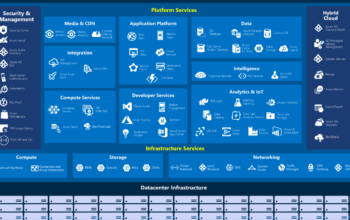
In this chapter we’ll discuss about core Azure services and core Azure architectural components. Still you can read this post to knowing what kind of service that Microsoft Azure it provides and using it as a supplement material for your AZ-900 exam.
Note: Due the to limit of time, part of sections will only take a brief introduction, but the content will remain update until its comprehensive.
In this chapter covering with:
- Region and Region Pairs
- Availability Zones
- Resource Groups
- Subscriptions
- Management Groups
- Azure Resource Manager with Azure resources
- Virtual Machines, App Services, Azure Container Instances, Azure Kubernetes Service (AKS), Windows Virtual Desktop, Virtual Networks, Load Balancer, VPN Gateway, Virtual networking peering, ExpressRoute, Azure Blob Storage, Disk Storage, File Storage, Storage tiers, Cosmos DB, Azure SQL Database, Azure Database for MySQL, Azure Database for PostgreSQL, SQL Managed Instance, Azure Marketplace
What is a region?
A region is a geographical area on the planet containing with at least one or multiple datacenters that are nearby and networked together with a low latency network. Usually when you deploy a resource in Azure, you will often need to choose the region where you want your resource deployed. For example, when you create a compute resource like virtual machine you will need to choose a region to deploy. This region usually will be the one which whether nearby to your or your target client’s location.

According to Microsoft, Azure has more global regions than any other cloud provider. This gives a huge flexibility to deploy resource to your user no matter where they are. And it also provides better redundancy and scalability. See the following map for all of the available regions in Azure.

Note: Not every service or resource allow you to select with a region. For example, the virtual machine with specific sizes or storage types only available in certain regions. And for service like Azure Active Directory (AAD) and Azure Traffic Manager are not require you to select a particular region.
Special regions in Azure
There are also have some specialized regions that meet certain compliance and legal requirements.
- US DoD Central, US Gov Virginia, US Gov Iowa and more: These are physical and logical network-isolated instances of Azure for US government agencies and partners. These datacenters are operated by screened US persons and include additional compliance certifications.
- China East, China North and more: These regions are available through a unique partnership between Microsoft and 21Vianet, whereby Microsoft does not directly maintain the datacenters. (note: 21Vianet is the largest carrier-neutral internet data center service provider in China, 21Vianet operate local Azure and Office 365 datacenters to provide the ability to use these service while keeping data retain in China to comply with Chinese laws. )
Remember: Regions are what you use to identify the location for your resource. You also should be knowing other two terms: geographies and availability zone.
What is geographies in Azure?
An Azure geography is a discrete market typically containing two or more regions that preserve data residency and compliance boundaries. Taking an example, when the car maker sells the car to the US the car will be shipped with wheel on the left side of the car, but when their sells the car to the UK will be shipped with wheel on the right side of the car. So, the car maker would sells the car according to the destination market with their unique preference also to comply with certain local laws. Instead, if the car maker sells the car with wheel on left side they may fact not allow into UK market. (In the really word that may not true)
Geographies are divided in Azure with 4 area:
- Americas
- Europe
- Asia Pacific
- Middle East and Africa
Each region belongs to a single geography and has specific service availability, compliance, and data residency/sovereignty rules applied to it.

What is an Available Zone in Azure?
Availability Zone are physically separate datacenters within an Azure region. Each Availability Zone is consist of three datacenters as a minimum, and equipped with independent power, cooling and networking to make it isolated with each other. In case one Availability Zone goes down, the other continues working. Availability Zones are connected through a high-speed and private fiber-optic networks.

You need to be aware of that not every region support for Availability Zones. Below are the regions supported with Availability Zones:
- Central US
- East US 2
- West US 2
- West Europe
- France Central
- North Europe
- Southeast Asia
Usually when you use Availability Zones are for running mission-critical application to build high-availability. So your application and services will be replicating from your current zone to another zone. Availability Zones are primarily for VMs, managed disks, load balancers, SQL database. Be notice when duplicating your services and transferring data between zones it may have cost that generated. (btw, my VM set are using the Availability Zone to make sure it’s always available to my users.)

What is a region pair?
You probably pop up a question: what if there was a tsunami or earthquake just happened on the region that has Azure datacenters located? Well, that’s the region pair idea came out! Each Azure region is always paired with another region within the same geography (such as America, Asia, Europe, Middle East) at least 300 miles away. You can think of this as a greatest of Plan B to reduce the likelihood of interruption due to events such as natural disasters, civil unrest, power outages. So if a region in a pair was affected by a natural disaster, the services would automatically fail-over to the other region in its region pair.
The following is an example of region pair in Azure: West US paired with East US, SouthEast Asia paired with East Asia.

What are Resource / Resource Group / Subscriptions / Management Groups?
Basically, a resource is a service you created from Azure Marketplace, this could be a virtual machine, storage, container, SQL database. Etc.

A Resource group is a logical container for resource deployed on Azure. Resource group exist it to help you manage and organize your Azure resources. Imagine if you have created so many resources and there are no place to properly organize them it could be a nightmare for you to manage them. With Resource Group you can placing resource with its type or location to create some order for better management. All resource must be in a resource group and a resource can only be a member of a single resource group. You can moving some of resources between resource groups but resource groups can’t be nested.

You must have a subscription before you can create any of resource in Azure. When you create a free Azure account there is a free trial subscription created for you. An Azure subscription is a logical container used to provision resources in Azure. It holds the details of all your resources and links to your Azure account. An Azure Account can have one or more subscriptions for billing management purposes or create a separate environment for different departments or for compliance reason. Keep in mind: resource access control occurs at the subscription level. (I’ll take this about later when we head to RBAC.)

Okay, you know that an Azure account can have multiple subscriptions so where you can manage those subscriptions? That is the purpose with Management Group. Azure Management Group is a higher level of container for managing access, policies, and compliance across multiple Azure subscriptions. All subscription within a Management Group automatically inherit the conditions applied to the Management Group. This is really helpful when your company have many services or application on Azure, with different department you can create Management Group for each of department with their own subscription.

The following shows you a higher view of the relationship between Management Groups to Resources.

What is Azure Resource Manager?
Azure Resource Manager is the deployment and management service for Azure. It provides a management layer that enable you to create, update and delete resources in Azure. Similar to a handler, you create a resource via Azure Portal or using Azure PowerShell, the request will send to Azure Resource Manager and it proceed to authenticate and authorizes the request. Then send the request to the Azure service and take related actions.
The following picture shows how Azure Resource Manager handle and proceed your request.

What core resource provide in Azure?
There lots of services that Azure provides, we’ll mainly focus on 3 major sections: Compute, Networking, Storage.
Azure Compute service
The following are some common compute service in Azure:
- Azure Virtual machines
- Azure Container Instances
- Azure Kubernetes Service
- Azure App Service
- Azure Function App (Serverless computing)
- Windows Virtual Desktop

Azure Virtual machine
Compare with building up a machine in usual, you can just create a Virtual machine in Azure with few clicks. It just like a physical computer except that you don’t have to maintain the physical hardware. And when you need more compute power you can perform a vertical or horizontal scale with adding more CPU core or adding more VMs as you need.
Virtual machine are an ideal for when you need:
- Total control over the Operating system
- The ability to run custom software
- To use custom hosting configuration
- Deploy testing and development environment
- Extending datacenter to the cloud
Remember, virtual machine is a form of infrastructure as a service. You and your service provider are under shared responsibility model. Means you still have to maintain everything inside the VM: OS update, configuration, antivirus definition update, etc.
Azure Container Instances
Azure Container Instances (ACI) offers the fastest and simplest way to run a container in Azure. It’s a PaaS offering that allows you to upload your container and execute them directly.

Azure Kubernetes Service
When you have multiple containers deployed across multiple servers it is very complex to manage them. So, Kubernetes provide an open source API to controls how and where those containers will run. Kubernetes also can automatically manage service and scales based on compute utilization. It even check the health of individual resources and enable apps to self-heal by automatically restarting or replicating containers.

Azure App Service
Azure App Service basically provider with PaaS features, you can build and host web apps, API apps, WebJobs, Mobile Apps without managing infrastructure. The App Service plan determines how much hardware is devoted to your host. It also offer automatically scaling and high-availability.

Azure Function App (Serverless computing)
Serverless computing is a cloud-hosted execution environment that runs your code but abstracts the underlying hosting environment. There is no infrastructure maintenance or configuration required. You create an instance then you add your code.
You can focus on your code and only pay for what your use.
Azure has two implementations of serverless compute:
- Azure Functions
- Azure Logic Apps
Azure Functions
An Azure function is a stateless environment. You can host a single method or function by using popular programming language in the cloud to response to an event. Azure Functions scales automatically and charges occur when a function is triggered. Azure Function is a solution ideal for when you are only concerned with the code that running your service not the underlying infrastructure.

Azure Logic Apps
Azure Logic Apps is a low-code/no-code development platform hosted as a cloud service. It is designed in a web-based designer and can execute logic that’s trigged by Azure service without you to write single line of code. You create a Logic App workflow using a visual designer on Azure Portal or in Visual Studio. The workflow are persisted as JSON file.

The different between Functions and Logic Apps
Azure Logic Apps are similar to Azure Function with both enable you to trigger logic based on an event. Where Functions execute code, Logic Apps execute workflow.
You write code to complete each step in Azure Function, and you using a GUI to define the actions and how they related to one or another.
One more thing, the two service are priced differently. Azure Functions pricing is based on the number of executions and the running time of each execution. While Logic Apps pricing is based on the number of executions and the type of connectors that is utilizes.
Windows Virtual Desktop
Windows Virtual Desktop like the name implies basically is just a Virtual Machines with dedicate Windows 10 OS running on Azure. You can access it across multiple device like Mac, iOS, Android, Windows. And as long as the end user have Internet access it can connect to the Windows Virtual Desktop.
Windows Virtual Desktop also improved security by using reverse connect technology. This connection type is more secure than the Remote Desktop Protocol by no inbound ports open.

Azure Networking Services
Azure Virtual Network, Azure VPN Gateway, Azure ExpressRoute, Azure Load Balancer, Azure Application Gateway, Azure Traffic Manager are the components of Azure Networking Services.
Azure Virtual Network
A virtual network is a logically isolated network on Azure. It allows Azure resource such as VMs, databases, to securely communicate with each other, with the Internet and on-premise network.
Azure virtual network provides with the following key networking capabilities:
- Isolation and segmentation
- Internet communications
- Communication between Azure resources
- Communication with on-premise resource
- Route network traffic
- Filter network traffic
- Connect virtual networks

Azure VPN Gateway
Azure VPN Gateway instance are deployed in Azure Virtual Network instances, and enable the following connectivity:
- Connect on-premises datacenters to virtual networks through a site-to-site connection.
- Connect individual devices to virtual networks through a point-to-site connection
- Connect virtual networks to other virtual networks through a network-to-network connection.

Azure ExpressRoute
The Express Route let you extend your on-premise networks into the Microsoft cloud over a private connection. With Express Route you can establish connections with your on-premise network to Microsoft cloud services, such as Microsoft 365, Azure.
Express Route connections don’t go over the public internet. Connectivity are from an any-to-any (IP VPN) network, a point-to-point Ethernet network, or a virtual cross-connection through a connectivity provider at a colocation facility. This allows ExpressRoute connections to offer more reliability, faster speeds, consistent latencies, and higher security than typical connections over the Internet.

With ExpressRoute, your data doesn’t travel over the public internet, so it’s not exposed to the potential risks associated with internet communications. ExpressRoute is a private connection from your on-premises infrastructure to your Azure infrastructure.
Azure Load Balancer
Azure Load Balancer distributes traffic evenly among each system in a pool. Which can help you achieve both high availability and resiliency.
A simple example is when you have two or more VMs running on Azure with each one has its own IP address, you want to make these VMs are highly available to your user how you can do that? Well, you can using Azure Load Balancer to distribute traffic if one VM is unavailable or stops responding, the Loan Balancer direct traffic to one of the responsive VM.

Azure Application Gateway
Azure Application Gateway is a load balancer designed for web application. It used azure Load Balancer at the transport level (TCP) and applies sophisticated URL-based routing to support several advanced scenarios.

Azure Traffic Manager
Azure Traffic Manager can route traffic in a few different ways, such as to the endpoint with lowest latency or by geography. With Geography traffic routing, Traffic Manager direct users based on their DNS query originates from then to a nearby endpoint. This is used for the case where you have hosted a website on Azure located in US, but you want rest of world users can loading it quickly as possible.

Azure Load Balancer vs Azure Traffic Manager
Azure Load Balancer distributes traffic within the same region to make your services more highly available and resilient. Traffic Manager works at the DNS level, and directs the client to a preferred endpoint. This endpoint can be to the region that’s closest to your user
With Load Balancer detects an unresponsive VM, it directs traffic to other VMs in the pool. On the other hand, Traffic Manager monitors the health of your endpoints. When Traffic Manager find an unresponsive endpoint, it directs traffic to the next closet endpoint that is responsive.
Azure Storage Services
Azure provide with the following storage service:
- Azure Cosmos DB
- Azure SQL Database
- Azure SQL Managed Instance
- Azure Database for MySQL
- Azure Database for PostgreSQL
- Azure Blob Storage
- Azure Data Lake Storage
- Azure Files Storage
- Azure Disk Storage
- Storage Tiers
Before we head to Azure storage you have to know three primary types of data that Azure Storage is designed to hold.
Structured data is commonly referred to as relational data. It can be stored in a database table with rows and columns. Thinking it like put data into a properly format spreadsheet.
Unstructured data is the oppose of Structured data, is has no designated structure to it. This characteristic makes it can hold any kind of data whether it’s video file or PNG image file. Image like a warehouse you can put your computers and other stuff it no matter what their size.
Semi-structured data is also referred to as non-relational or NoSQL data. It uses tags or keys to organize and provide a hierarchy for the data. This like you put everything into a cardboard box and using tags to mark them.
Azure Cosmos DB
Azure Cosmos DB is a globally distributed database service. It supports schema-less data that lets you build highly responsive and Always On application to support constantly changing data. You can use this feature to store data that is updated and maintained by users around the world. Azure Cosmos DB are ideally for unstructured data.

Azure SQL Database
Azure SQL Database is a relational database as service (DaaS) and based on the latest version of Microsoft SQL Server database engine. SQL Database is a high-performance, reliable, fully managed and secure database. SQL Database it provides 99.99 % availability. Its ideally for both relational data and non-relational data structure.

Azure SQL Managed Instance
Azure SQL Managed Instance is a scalable cloud data service that provides the broadest SQL server database engine compatibility with all the benefit of a fully managed platform as a service. Mostly Azure SQL Database and Azure SQL Instance shares the same features, but Azure SQL Managed Instance has many aspects that are not available to Azure SQL Database.
Azure SQL Managed Instance makes is easy to migrate your on-premise data on SQL Server to the cloud using the Azure Database Migration Service (DMS) or native backup and restore.

Azure Database for MySQL
Azure Database for MySQL is a relational database in the cloud, and it’s based on the MySQL Community Edition database engine. (with versions 5.6, 5.7, 8.0 ) With Azure Database for MySQL you can use point-in-time restore to recover a server to an earlier state as far as 35 days.
Azure Database for MySQL offers several service tiers, and each tier providers different performance and capability to support lightweight to heavyweight database workloads.

Azure Database for PostgreSQL
Azure Database for PostgreSQL is a relational database service in the cloud. The server software is based on the community version of the open-source PostgreSQL database engine.
Azure Database for PostgreSQL shares same benefits with Azure Database for MySQL:
- Scale up or down as need within seconds
- Adjustable automatic backups and point-in-time restore for up to 35 days
- Enterprise-grade security and compliance
- High availability with no additional cost
Azure Database for PostgreSQL is available in four deployment options:
- Single server
- Flexible server (Preview)
- Hyperscale (Citus) server group
- Azure Arc enabled PostgreSQL Hyperscale (Preview)

Azure Blob Storage
Azure Blob Storage is used for unstructured data. So it can holds any kind of data with no restriction. Azure Blob Storage also can manage thousands of simultaneous uploads, massive amounts of videos data, constantly growing log files, and can be reached from anywhere with an Internet connection.

Azure Blob Storage also let you stream large video or audio files directly to the user’s browser from anywhere in the world. Azure Blob Storage is also used to store data for backup, disaster recovery, and archiving. It has the ability to store up to 8TB of data for virtual machines.
Azure Blob Storage is ideal for:
– Serving images or documents directly to a browser.
– Storing files for distributed access.
– Streaming video and audio.
– Storing data for backup and restore, disaster recovery, and archiving.
– Storing data for analysis by an on-premises or Azure-hosted service.
– Storing up to 8 TB of data for virtual machines.
Azure Data Lake Storage
Azure Data Lake Storage allows you to perform analytics on your data usage and prepare reports. Data Lake is a large repository that stores both structured and unstructured data.
You can store all your business data to Azure Data Lake and then make it available for analysis.

Azure File Storage
Azure File Storage offer fully managed file shares in the cloud that are accessible via the industry standard Server Message Block (SMB) protocol. Azure File shares can be mounted concurrently by cloud or on-premise deployments of Windows, Linux, macOS. Applications running in Azure virtual machine or cloud service can mount a file storage share to access file data, like you access a shared folder on Windows.
Azure File Storage are used for following scenarios:
- Store configuration files on a file share and access them from multiple VMs
- Write data to a file share and process or analyze the data later.
The difference between an on-premise file share and Azure File Storage is that you can access files from anywhere in the world, by using a URL that points to the file. And you use Shared Access Signature (SAS) tokens to allow access to a private asset for a specific amount of time.
See the following with an example of URL with SAS tokens:

Azure Disk Storage
Azure Disk Storage provide disk for virtual machines, applications, and other service to access and use as they need, just like normally you put file on a shared folder with on-premise file server. Azure Disk Storage allows data to be persistently stored and accessed from an attached virtual disk.
The disks come in many different sizes and performance levels, from solid-state drives (SSDs) to traditional spinning hard disk drives (HDDs), with varying performance abilities.
Mostly when you create a VM on Azure it will allow you to choose whether a SSD or HDD disk for deploy your VM.

Azure Storage Tiers
Azure Storage Tiers offered with three different access tiers for your blob storage. And helping you store blob object data in the most cost-effective manner.
Hot storage tiers – Optimized for storing data that is accessed frequently.
Cool storage tiers – Optimized for data that are infrequently accessed and stored for at least 30 days.
Archive storage tiers – Optimized for data that are rarely accessed and stored for at least 180 days with flexible latency requirements.

Be aware of the following consideration when you apply to the different access tiers:
- Only the hot and cool access tiers can be set at the account level.
- Hot, cool, and archive tiers can be set at the blob level.
- The archive access tier is not available at account level