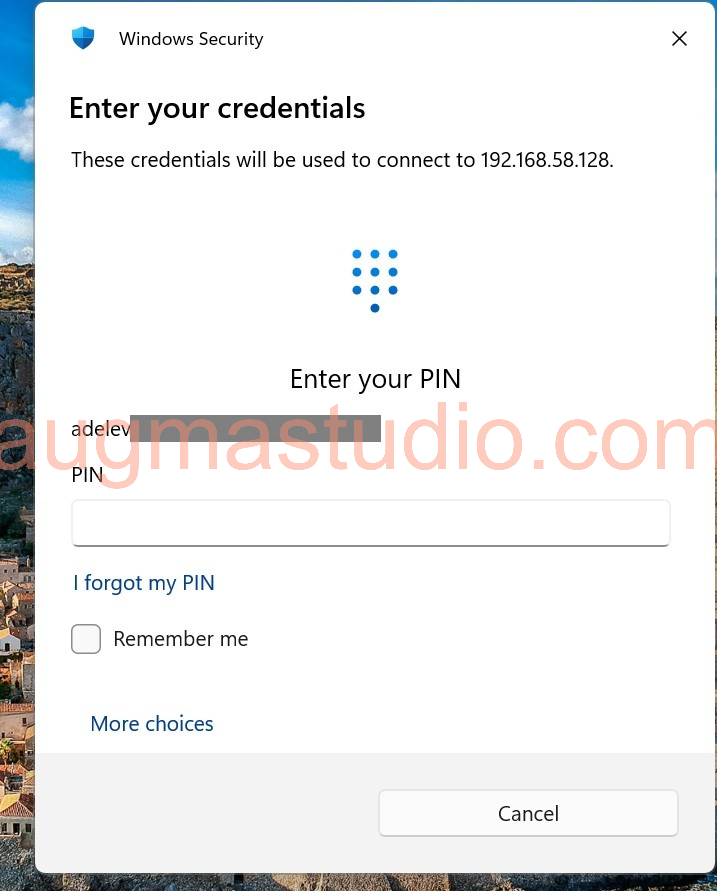
Recently encountered an issued where some of our local Windows PCs were unable to connect via mstsc (Remote Desktop Connection program), when the user entered with the correct credentials it just keep prompted the error message says “The system administrator has restricted the types of logon (network or interactive) that you may use. For assistance, contact your system administrator or technical support”. In this post I’ll demonstrate how to resolve this issue in the following steps.
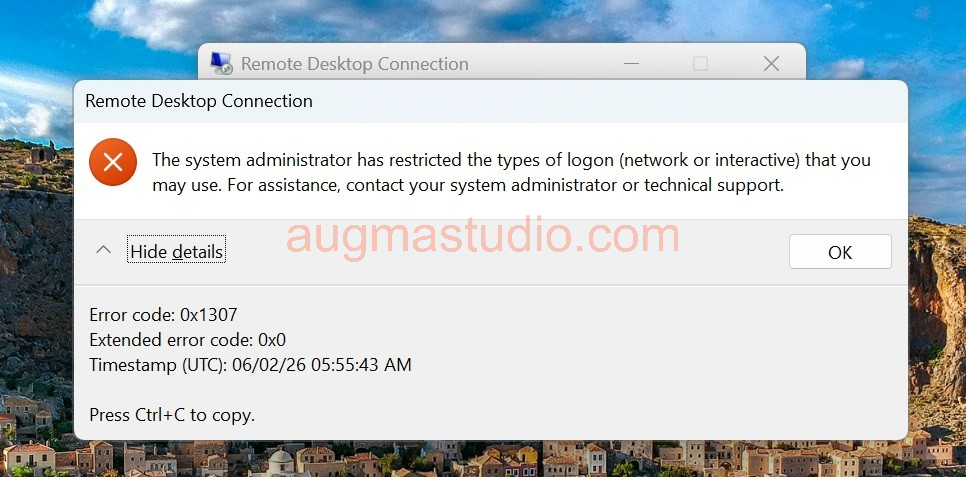
So the reason that you saw this type of error is most like that someone from your IT team/dept has modified some security related GPO. To resolve this you may:
A –> Contact with your system admin or internal security team to confirm whether there are some new security policies has been pushed to those devices.
B –> Manually override this restriction via the following steps:
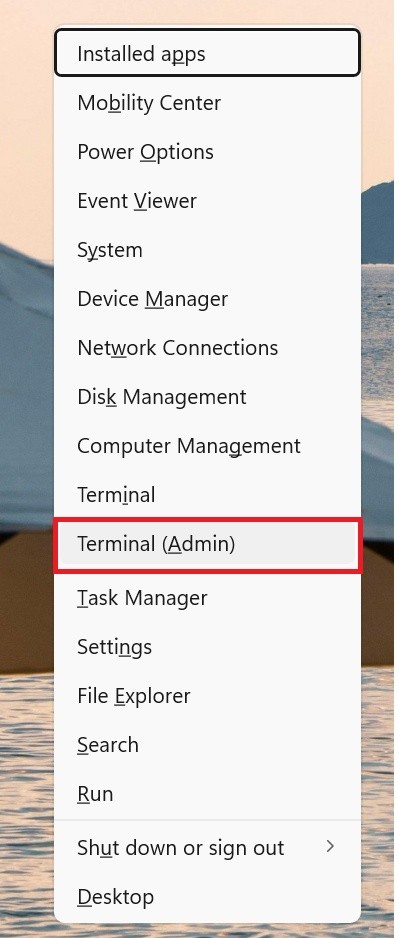
1.Press “Windows logo key + X” > select “Terminal (Admin)” to open Powershell or Command Prompt window.
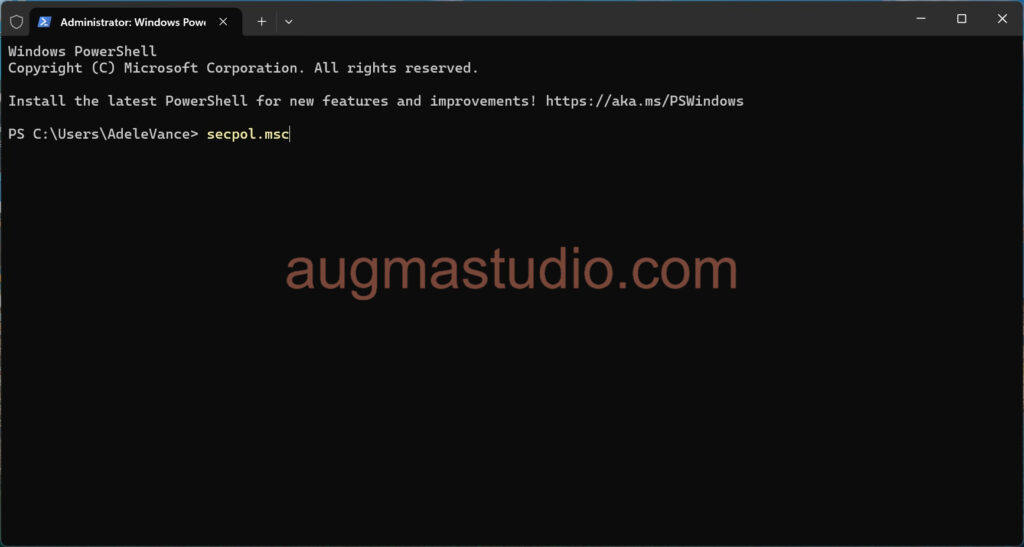
2.Enter “secpol.msc” to open up Local Security Policy.
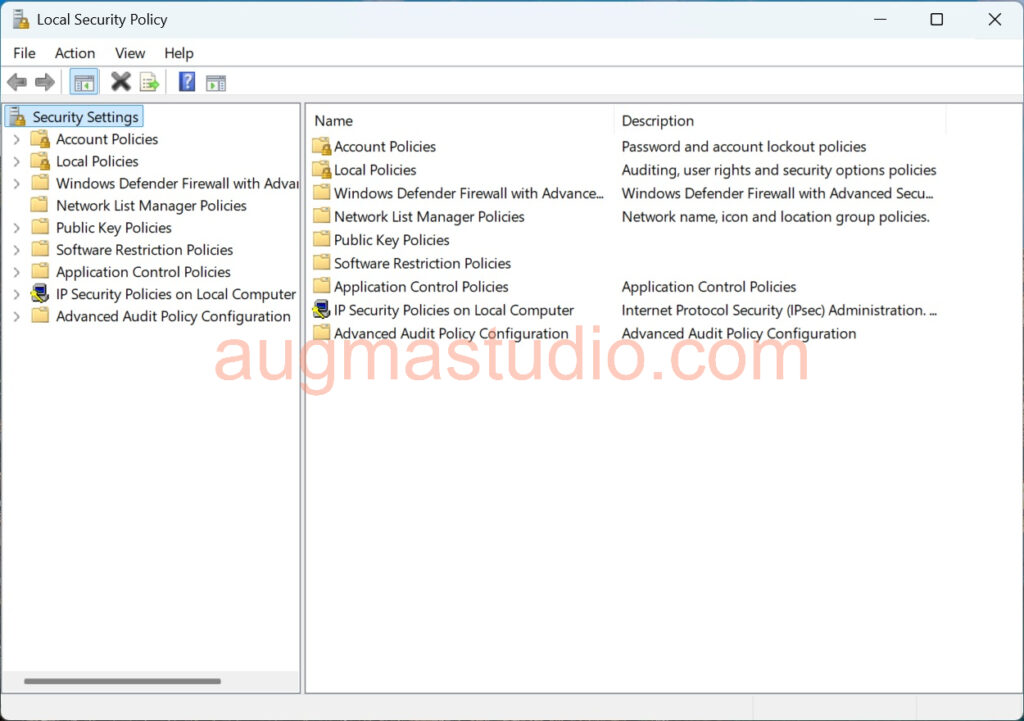
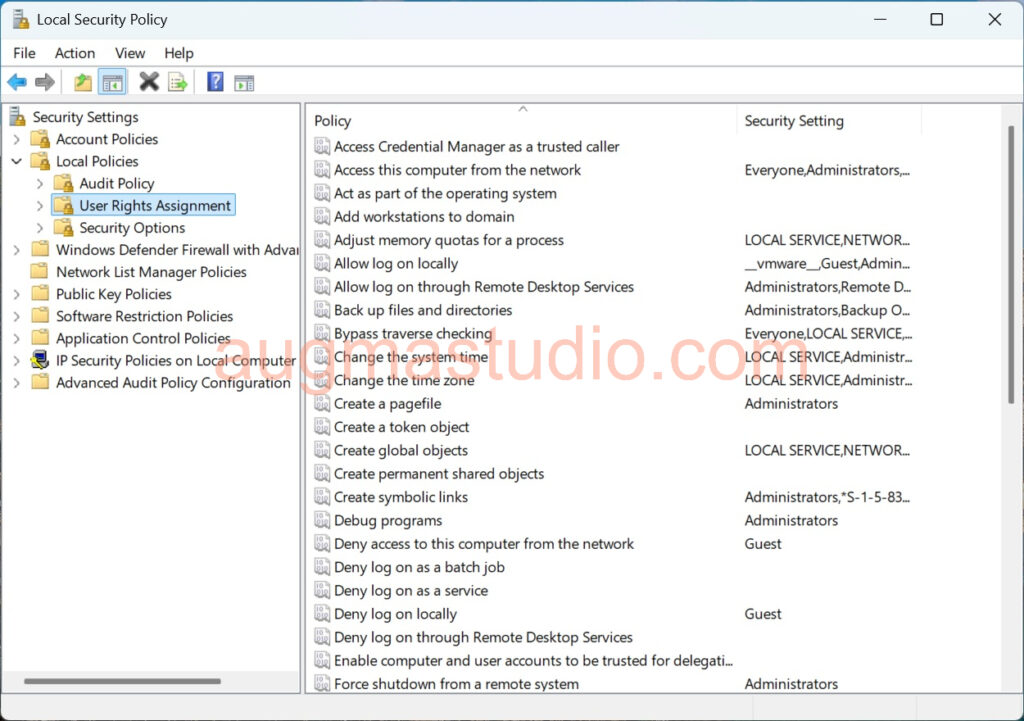
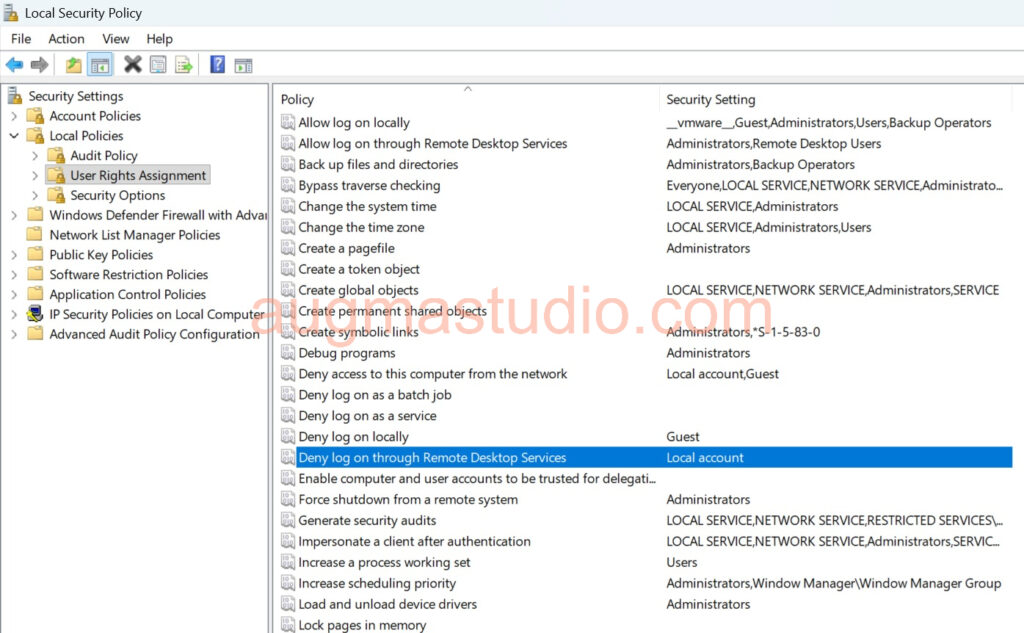
3.Navigating to “Local Policies” > “User Rights Assignment”.
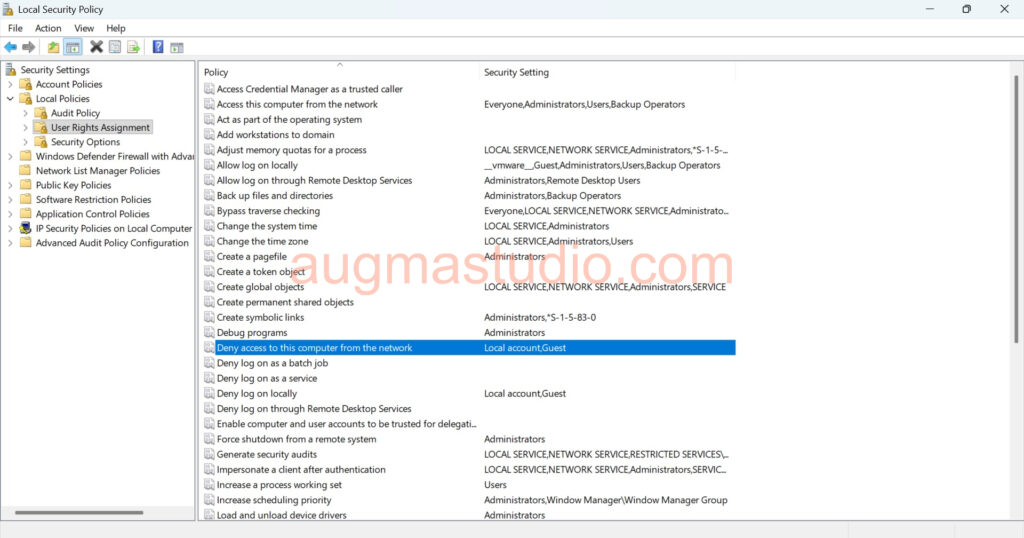
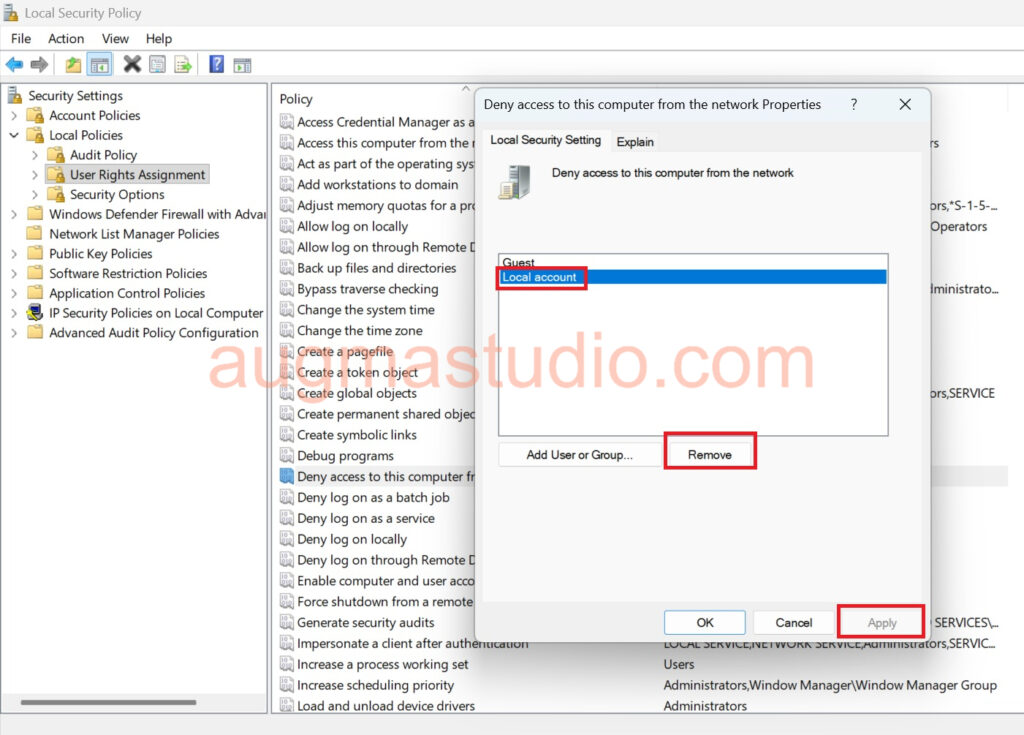
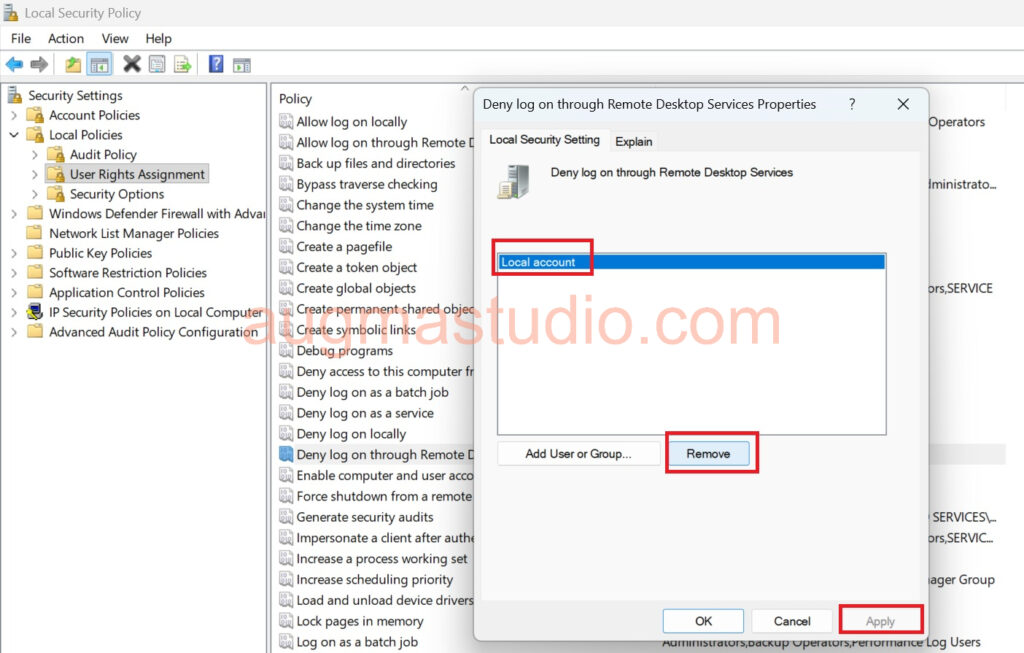
4.Select “Deny access to this computer from the network” option > then removing the “Local Account” > then click “Apply” button.
5.Then, select “Deny log on through Remote Desktop Services” > then removing the “local Account” > then click “Apply” button.
6.After that, you may inform the user to retry with mstsc (Remote Desktop Connection).