I am kind of power user of mstsc.exe (the Remote Desktop Connection app) which I using it almost every day. However due to the nature of Windows 10 and Azure AD you cannot establish the connection successfully with AAD joined PC (I’m referring to the normal way), especially when the destination PC was a hybrid Azure AD-joined device. And you probably end up with a obscured message says “The logon attempt failed”… Even thought, some of you may tried to login with “AzureAD\yourname” or “your.name@company.com” format but it just won’t work. In this post I’ll demonstrate how to resolve this issue in order to be easy and successfully using mstsc.exe to connect any of AAD joined PC (and hybrid AAD joined PC).

There is no require for any other third-party tool to make such changes, just follow below steps along with your device. Despite the following screenshot provide from Win11 with Beta Channel it also works for Win10 too.
- Press “Windows logo key + R” to open Run > then enter with “mstsc” open Remote Desktop Connection program > enter your destination PC’s IP address or hostname > then click “Save as” to save to the .rdp file to a local location.

2. Right-click on the saved .rdp file > Open with select “Notepad”.

3. Scroll down the text to the bottom > adding two lines with “enablecredsspsupport:i:0” and “authentication level:i:2” > press “Ctrl + S” to save the changes. (better to leave one row as blank space to separate your changes.)
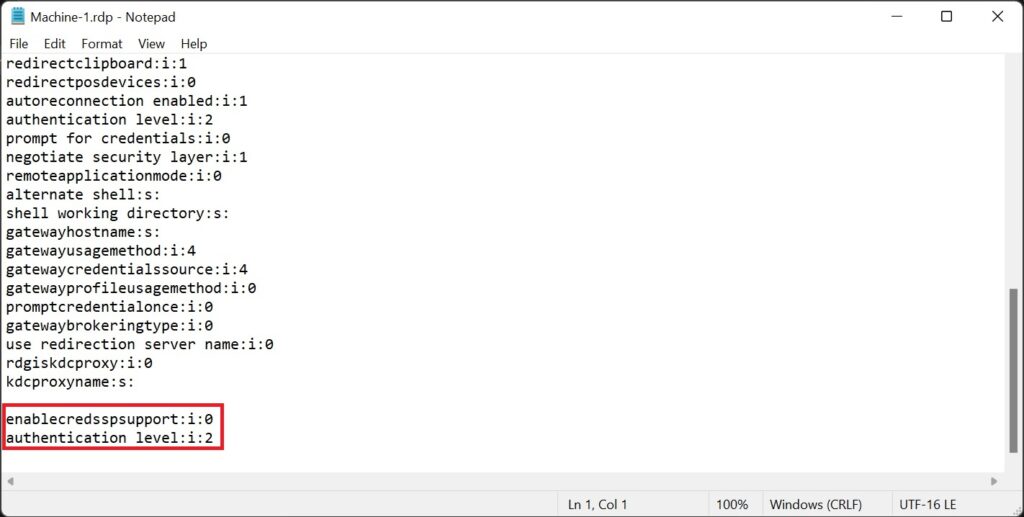
4. Double-click the .rdp file it should pop-up a connection window like the one below > then hit “Connect” button.

5. You should successfully saw the lock screen of your destination PC > then enter the AAD credential to login to the PC.
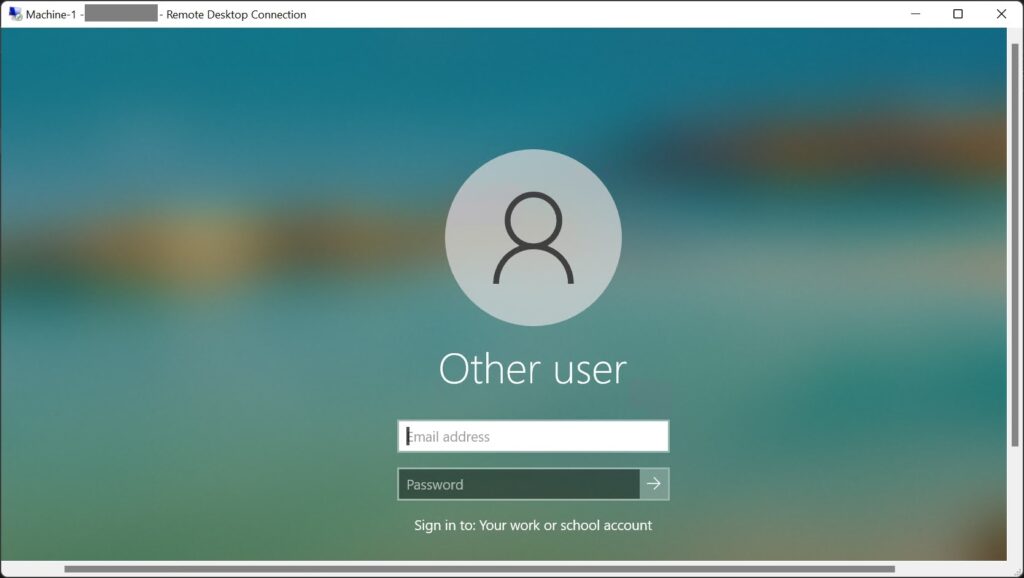
If you received the error message says “The remote computer requires Network Level Authentication…” You should disable the NLA from the destination PC from System Properties > Remote Desktop > uncheck “Allow connections only from computer running Remote Desktop with Network Level Authentication (recommended)”.

Kindly note in a security perspective you should choose to allow connections only with Network Level Authentication. When you enabled this option, the users will have to authenticate themselves to the network before they can connect to your PC which helps to protect your PC from malicious user. Anyway, as long as you are aware of this and you trust with your environment then it should be fine.



thx Joe, this helped me 🙂